The short answer
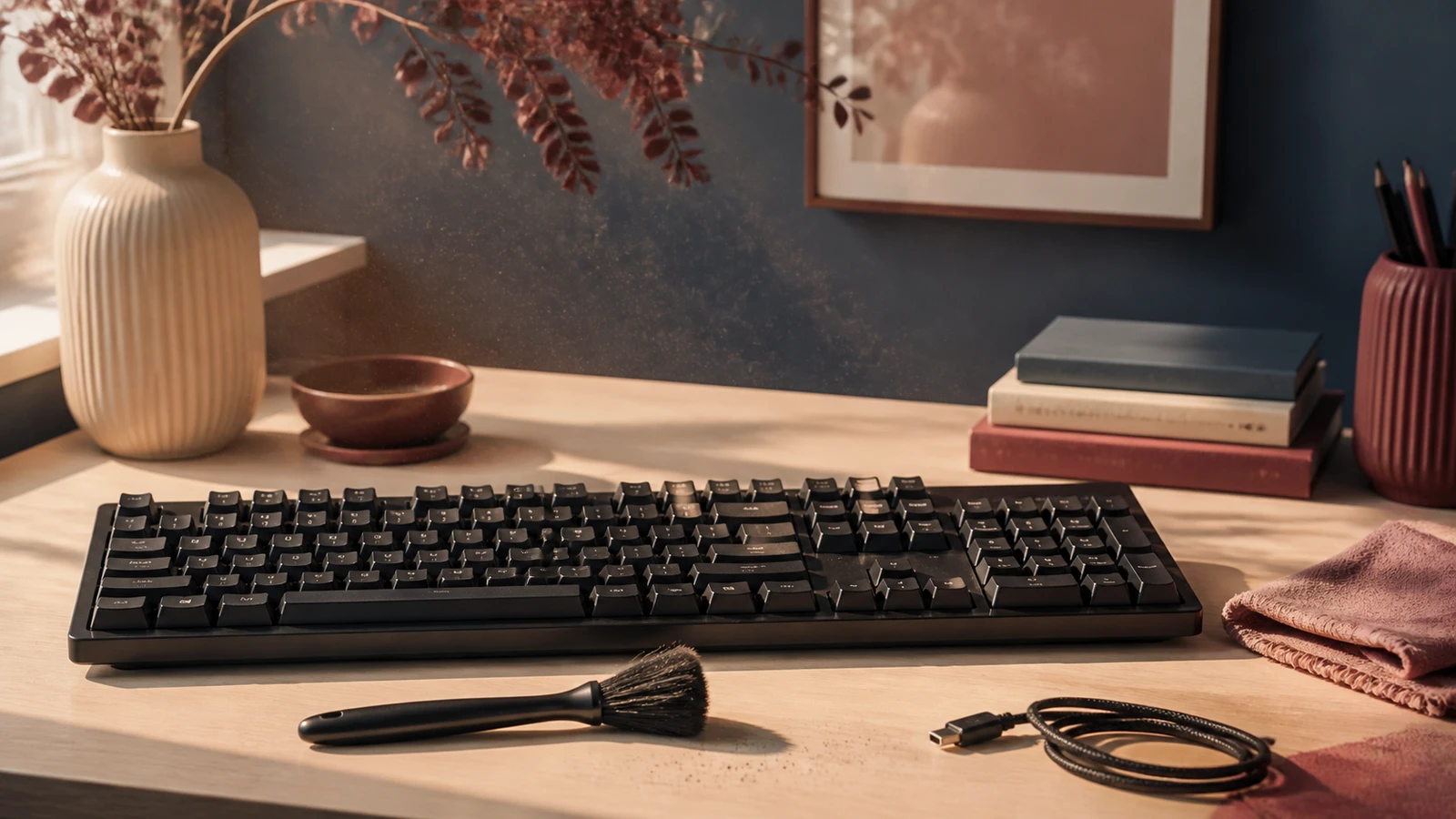
To clean a keyboard with an electric air duster, first follow the keyboard maker's instructions, shut the device down or disconnect it where required, remove drinks and loose desk items, and identify an open edge where debris can leave. Start with the lowest useful airflow. Hold the nozzle above the gaps rather than inside them, aim across the key field toward that open edge, and use brief passes with pauses to inspect. Finish loose surface dust with a maker-approved cloth or soft brush. Stop if the material is sticky, wet, lodged under a damaged key, or not moving toward a safe exit.
The aim is not to produce a dramatic cloud of dust. A good result is controlled movement: crumbs and dry particles travel out of the keyboard instead of being driven under another row, into a switch, or toward a port. That is the part many quick cleaning guides leave vague. The exit path, the keyboard construction and the stop conditions matter more than the largest motor number printed on the duster.
- Loose, dry debris: low airflow, short angled passes and a visible exit.
- Sticky residue or liquid: stop and use the maker's spill or service process.
- Laptop or low-profile keys: do not remove keycaps unless the maker specifically permits it.
- Buying a duster: prioritise controllability and attachment fit over maximum output.
Decide what kind of keyboard you are cleaning
A full-size mechanical keyboard usually has taller keycaps and more open space around the switch housings than a slim laptop keyboard. A membrane office keyboard may use a different keycap retention system. Low-profile mechanical boards and scissor-switch keyboards can look similar from above while behaving very differently when a cap is pulled. Before you touch a key, identify the model and read its care or keycap guidance. The same air technique should not be copied blindly from one design to another.
Detachable keyboards are easier to position because they can be unplugged and moved to a clear workspace. Wireless keyboards still need to be switched off, and removable batteries should be handled only as the maker directs. A laptop keyboard is part of a larger computer with vents, speakers, ports and a display nearby. Cleaning the keys does not authorise opening the chassis, blowing into the ports or removing laptop keycaps. Treat the keyboard and the rest of the computer as separate cleaning zones.
Layout also changes the dust route. Deep gaps around standard keycaps may release crumbs when the board is tilted gently, while an island-style keyboard often holds fine dust along the shallow borders. Neither case calls for inserting a nozzle. You need enough open space for the air to skim across the surface and enough room at the far edge for debris to leave. If the only direction sends debris toward a display hinge, speaker grille or connector, turn the keyboard or choose another method.
Build an exit path before turning the duster on
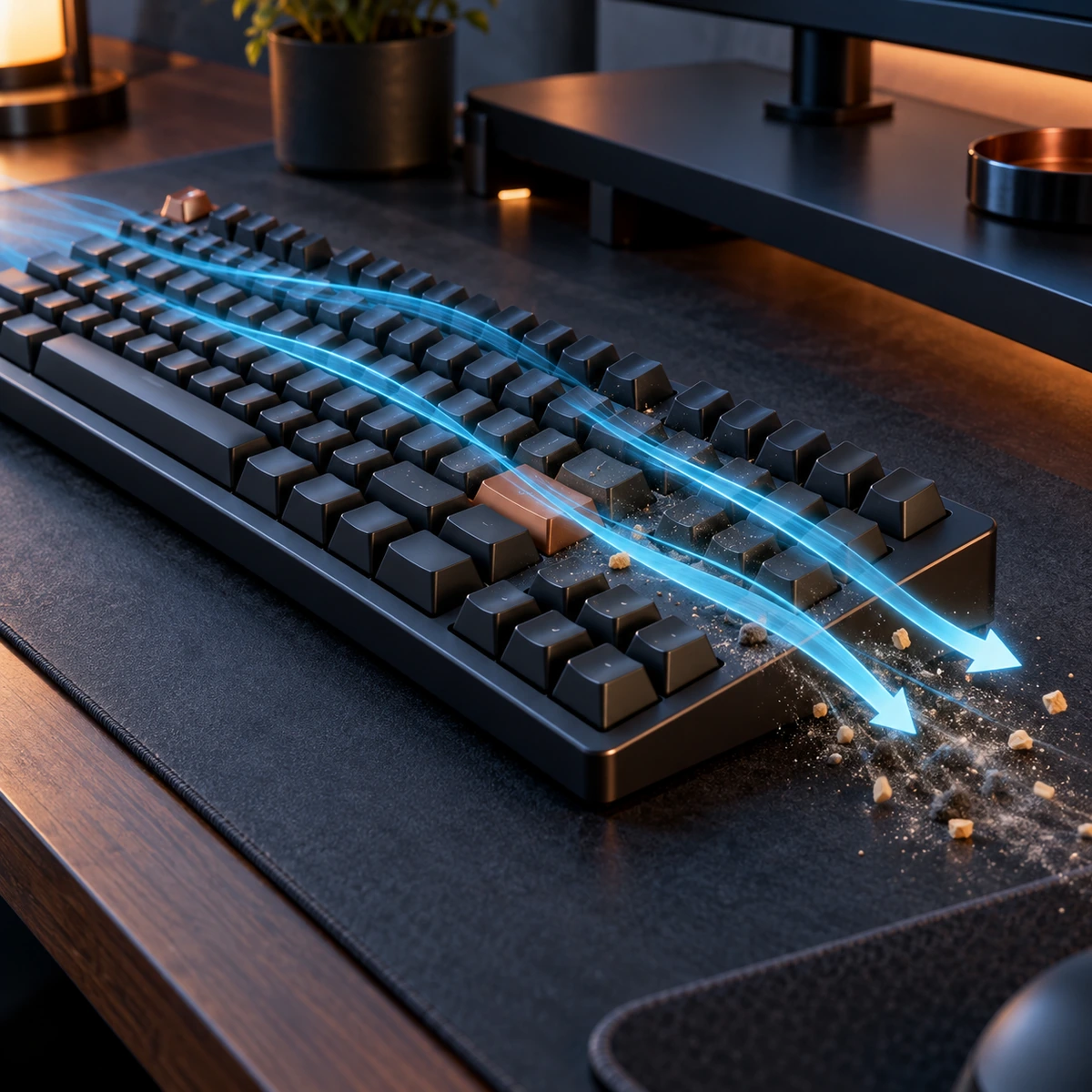
Clear the desk and place a towel, tray or easily cleaned surface beyond the edge where you want debris to land. Move cups, loose paper and small parts out of the airflow. Good lighting helps you distinguish free crumbs from marks that are actually stuck to the key surface. If the keyboard maker allows a gentle tilt, use the angle to help gravity and airflow work in the same direction. Do not shake a laptop or twist a large board by one corner.
Choose one long edge as the exit. Work from the opposite side in overlapping lanes, much as you would sweep a floor toward a doorway. Aim slightly across the keys, not straight down. A vertical blast has nowhere useful to send a particle except deeper into the gaps or back into the air. An angled pass creates a path that you can watch. If a crumb moves two rows and stops, change the angle or rotate the keyboard instead of increasing power immediately.
Test the duster away from the keyboard first. Confirm that the attachment is secure, the airflow is stable and the intake and outlet are clear. Start at the lowest setting. Bring the airstream toward the first outer row while keeping a visible gap above the key tops. If nothing moves, shorten the distance gradually or increase output by a small amount. If keycaps rattle, a loose part shifts or debris scatters in every direction, back away and reduce the airflow.
Use short passes instead of holding air on one spot
Move the nozzle at a steady walking pace across a small section, release the control, and look at what changed. Several short passes are easier to control than one continuous blast. The pause lets airborne dust settle and gives you time to check whether particles are actually moving toward the planned edge. It also reduces the temptation to chase one speck deeper between the keys.
Work by zones: number row, letter field, navigation cluster and numeric keypad if present. Clean one zone toward the same exit before moving on. Around stabilised keys such as the space bar, Enter and Shift, use less airflow and a wider angle. These keys have larger moving parts underneath, and a direct close blast can move debris into the stabiliser area. Do not probe around them with the nozzle or a hard tool.
Keep your free hand away from the air path. Do not pin a loose key down while blasting around it. A loose or crooked key is a repair question, not a reason to increase airflow. Stop the cleaning pass, photograph the layout if needed, and consult the manufacturer. If a cap has already detached, keep it and any small retaining piece together. Airflow can send those parts across the room in a second.
Separate dry dust, crumbs and sticky residue
Dry dust is light and usually responds to a soft brush, a low air pass or both. Larger crumbs often move better after the keyboard is positioned so gravity leads them toward an edge. Hair and fibres can catch around key stems; when they remain visible and accessible, an approved soft brush may lift them without forcing them down. Never use a metal pick, sewing needle or improvised hook around a switch.
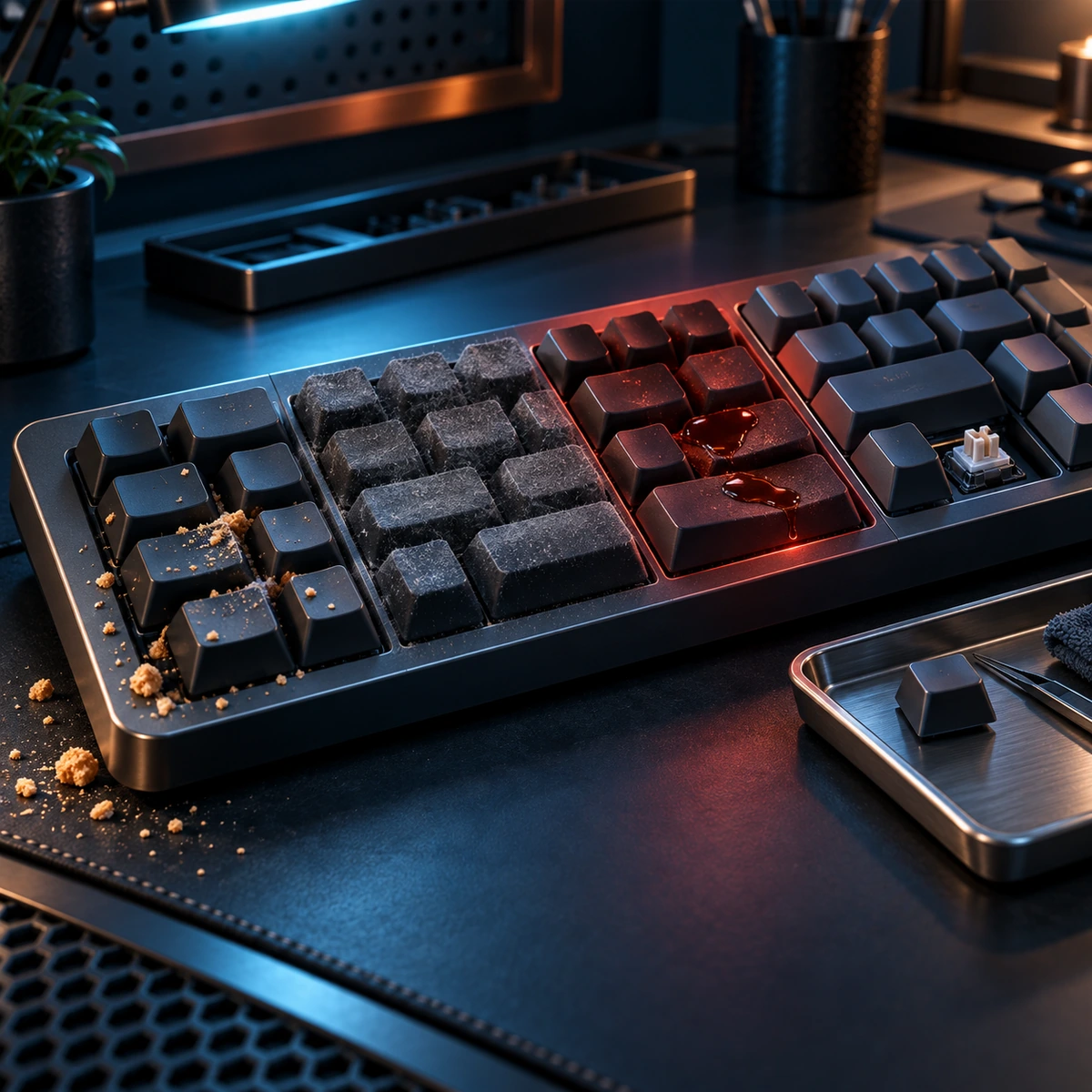
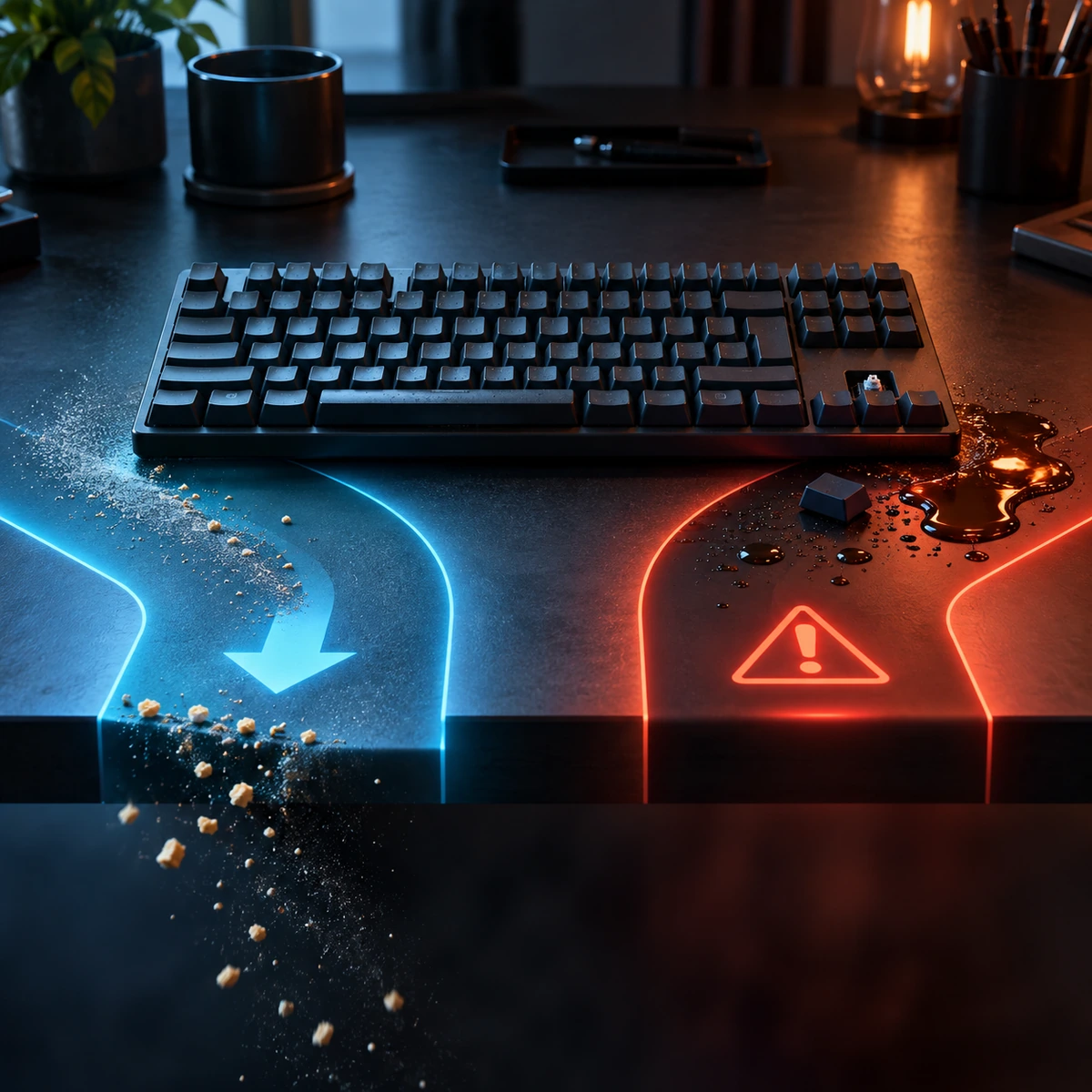
Sticky residue behaves differently. Sugar, oil and dried drink residue bind particles to the surface and may extend below the key. More air does not dissolve the residue. It can distribute it over a larger area or carry remaining moisture farther into the keyboard. If a key feels sticky after a spill, disconnect the device where safe and follow the maker's spill instructions. A detachable external keyboard may have a different service path from a laptop, but neither should be treated as a dry-dust job until the residue issue is resolved.
Unknown material is another stop sign. Fine workshop dust, toner, cosmetic powder, ash and metal particles may have properties that ordinary household crumbs do not. Do not create an airborne cloud or blow conductive debris across electronics. Move the keyboard away from the work area only if that can be done safely, and use the equipment or workplace procedure that applies to the material. A consumer air duster is not personal protective equipment or a hazardous-dust control system.
| What you see | Useful first step | When airflow is the wrong next step |
|---|---|---|
| Loose dry dust | Approved soft brush or low angled air | Dust will be blown into a port or enclosed device |
| Dry crumbs | Create an edge exit and use gravity first | A crumb is wedged under a damaged or loose key |
| Hair or fibre | Lift only when visible and accessible | It requires a hook, insertion or key removal not approved by the maker |
| Sticky mark | Use the maker-approved surface method | Residue may be under the key or came from a spill |
| Liquid or dampness | Disconnect where safe and follow spill guidance | Always: do not add airflow, heat or cleaner |
Know when keycap removal helps and when it creates damage
On some mechanical keyboards, the manufacturer documents removable keycaps and may provide a puller. In that narrow case, removal can expose the plate for a more thorough dry clean. Take a clear photograph first, remove only the caps the instructions cover, pull straight with the correct tool, and store every cap safely. Large keys may use stabilisers that need a different method. Do not assume a video for another model applies to yours.
Laptop and low-profile keycaps are often held by small clips or scissor mechanisms. They can break or fail to reseat even when the cap appears simple. Apple publishes a specific compressed-air procedure for certain MacBook keyboard situations, including a defined orientation and spray pattern. That procedure is evidence for those covered models, not a general invitation to pry off laptop keys or copy the same angle to every keyboard.
Routine cleaning should work with the keys installed. Use airflow to move accessible material, not to inspect hidden parts. If a key repeats, misses input, scrapes, remains depressed or sits at an angle after loose debris has been removed, stop. Repeated air passes do not diagnose a switch, membrane, stabiliser, connector or circuit fault. The right next step is model-specific support or repair.
Finish the surface without sending dust back inside
After the air pass, collect the debris that reached the towel or tray. Do not blow it back across the desk. Inspect the keyboard from a low angle under good light. If loose dust remains on the key tops, use the manufacturer-approved dry or slightly damp surface method. Microsoft and Logitech both publish device-cleaning guidance that separates surface wiping from internal or liquid exposure. Follow the exact product instructions and apply liquid to a cloth only when the maker permits it, never directly to the keyboard.
Give any approved moisture time to dry before reconnecting or powering on. Check that no keycap has lifted, no wireless switch was moved unintentionally and no small part is sitting beneath the board. Reconnect once, then perform an ordinary typing check. You do not need to hammer every key or run a stress test. Type a short sentence, use the modifier keys and confirm that the board behaves as it did before cleaning.
If a fault appears after cleaning, disconnect again and stop experimenting. Note which key or function changed and what method you used. That information is more useful to support than another round of high-power airflow. Burning odour, unusual heat, visible damage, liquid, repeated disconnections or battery swelling on a wireless keyboard require immediate manufacturer guidance rather than continued cleaning.
Set a realistic cleaning frequency
There is no useful rule that every keyboard needs an air duster once a week or once a month. Frequency depends on the room, the keyboard design and how it is used. Shared desks, pets, open windows, fabric fibres and eating at the keyboard create more visible debris. A covered keyboard in a low-dust room may need only occasional surface care. Clean when you can see loose material and remove it before it becomes a compact layer.
Use the least aggressive method that solves the current problem. A cloth handles fingerprints. A soft brush can collect fine surface dust. A gentle tilt may release a crumb. An electric air duster becomes useful when loose dry debris sits in reachable gaps and has a safe route out. Making maximum airflow part of a frequent routine adds risk without adding value.
Prevention is simple and usually more effective than deeper cleaning. Keep drinks away from the keyboard, avoid eating directly above it, wash or dry hands after dusty work, and cover the board only with a product designed for that keyboard and ventilation pattern. A cover used while the device is hot or a laptop is operating can create another problem, so follow the maker's instructions there too.
Choose an electric air duster for control, not for spectacle
For keyboard work, the most useful feature is a controllable low end. Fixed maximum power tells you little about whether you can start gently around a shallow key gap. Look for a secure attachment, a body that can be aimed without covering the intake, clear charging instructions and a support page that states the product's limits. A narrow nozzle is helpful only when it stays outside the opening and leaves enough room for debris to escape.
The current POWCUBE FT-03 product page describes an air-only duster with a stepless slide control, supplied detail attachments, USB-C charging and a stated maximum motor speed of 150,000 RPM. It also states about two hours for a typical full charge and up to about two hours at lower airflow. Those figures should not be turned into a promise of runtime at maximum output or proof that a keyboard will be cleaned in a certain number of passes.
FT-03 does not vacuum the debris it loosens. The FT-03 and FT06 comparison keeps that difference clear: FT06 adds a filtered handheld-vacuum mode for accessible dry debris, while FT-03 is the slimmer air-only option with continuous control. Do not hold a vacuum inlet against switches or treat suction as permission to remove keycaps. The keyboard maker still decides what contact and access are supported.
A keyboard-specific purchase checklist
Before buying, name the keyboard models you will clean and check their instructions. Confirm that your intended task involves loose, dry material rather than spills or repair. Look at the supplied nozzles and ask whether they can be held above the surface with a visible gap. Check how the airflow is controlled at the low end, where the intake sits, how the unit is charged and what the maker says about heat and cooling.
Then plan the complete job. You need an exit direction, a surface that catches debris, good lighting and a finishing method for the key tops. If you also intend to clean exterior computer vents, keep that as a separate procedure with its own device instructions. The POWCUBE air-duster support section covers the product controls and care boundaries, but it does not replace a keyboard or computer manufacturer's service manual.
Reject any product or cleaning promise that treats RPM as a complete performance measure, guarantees a result for every keyboard, recommends inserting a nozzle, or uses dramatic dust clouds as evidence of safe control. A keyboard air duster should help you perform a modest maintenance task more predictably. It should not encourage you to turn a spill, a broken key or an electrical fault into an airflow experiment.
Stop with a clean surface and an ordinary typing check
The job is finished when loose dry debris has left the accessible gaps, the key tops are clean by the approved method, the board is dry and every key sits normally. Collect what came out, put the attachment away and charge the duster only on a stable, open surface with a suitable cable and power source. There is no benefit in continuing until no microscopic dust exists.
Reconnect and type normally. If the keyboard works as before, return it to service. If a key sticks, repeats, fails, feels loose or shows evidence of liquid, stop and use the manufacturer's support route. The useful outcome is not a bigger dust cloud. It is a keyboard that received a controlled external clean without turning a maintenance job into a repair problem.